
Affinity Designerで金色グラデーションの作り方を記事にまとめました。”I have summarized how to make a golden gradation with Affinity Designer in an article.”
Illustratorでも応用できます。”It can also be applied to Illustrator.”
Affinity Designerについてはこの記事の最後にリンクを貼っていますので参照してください。”Please refer to the link at the end of this article for Affinity Designer.”
Contents
長方形ツールを選択”Select Rectangle Tool”

"Select the Rectangle tool"
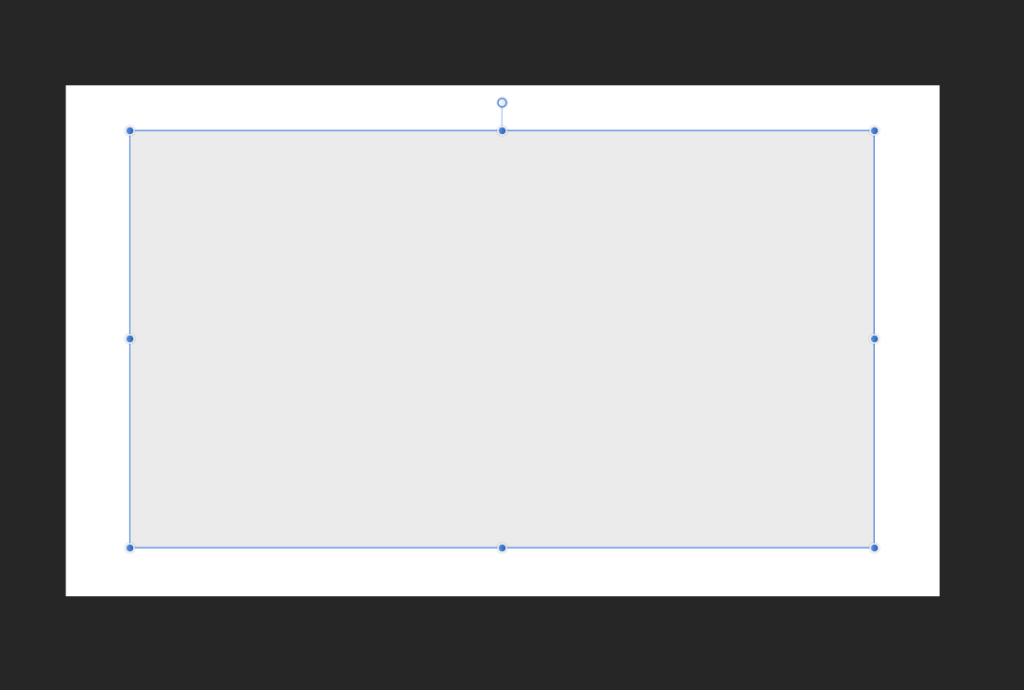
”Create a rectangle.”
塗りつぶしツール”Fill tool”
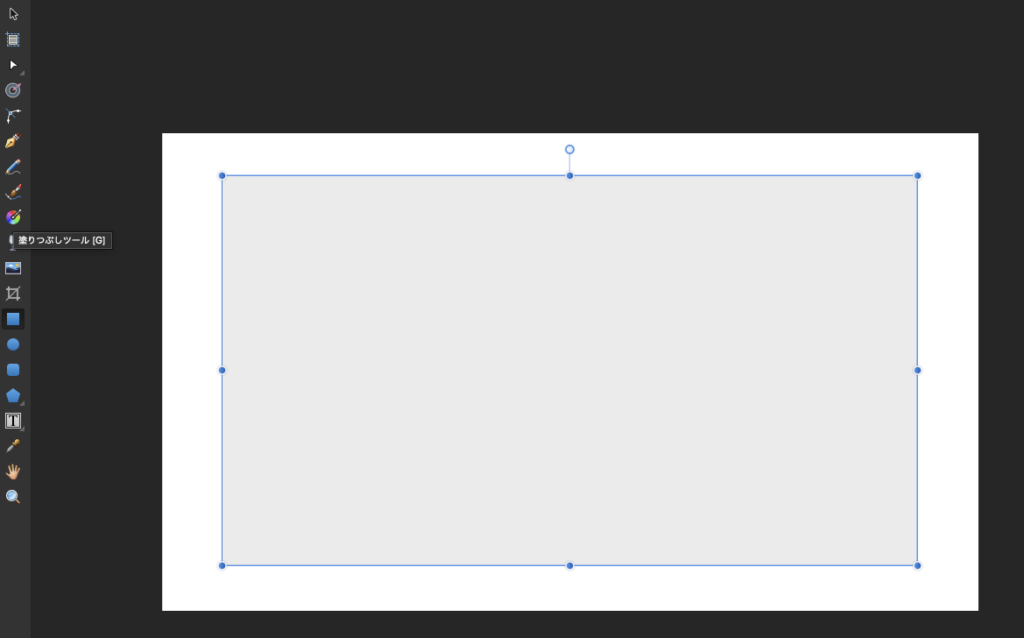
"Select the fill tool."
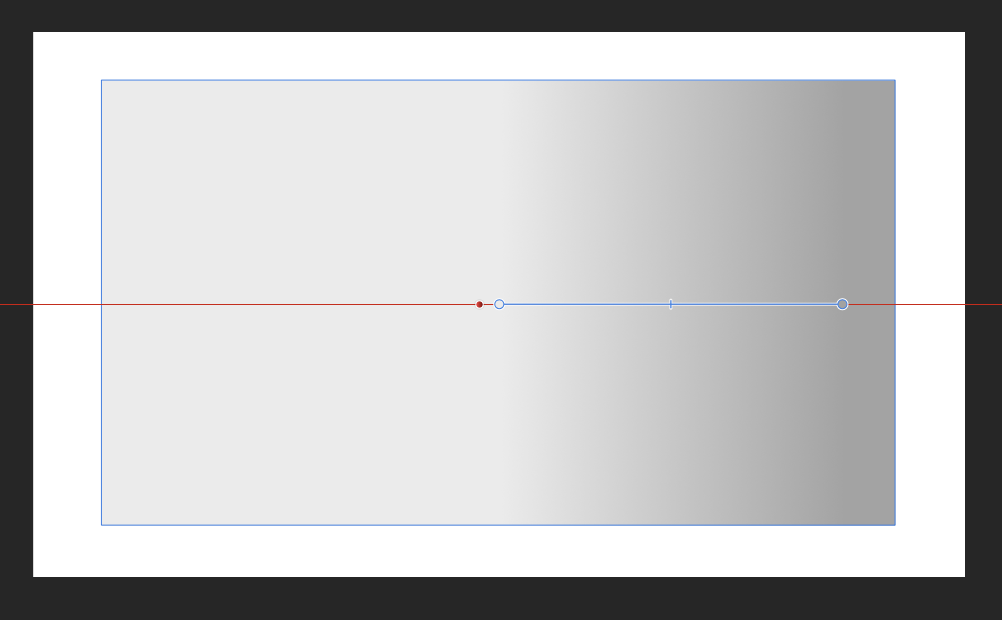
”Drag from the center of the object.”

”After dragging to the edge, click the edge of the gradation bar (enclosed place) to select it.”
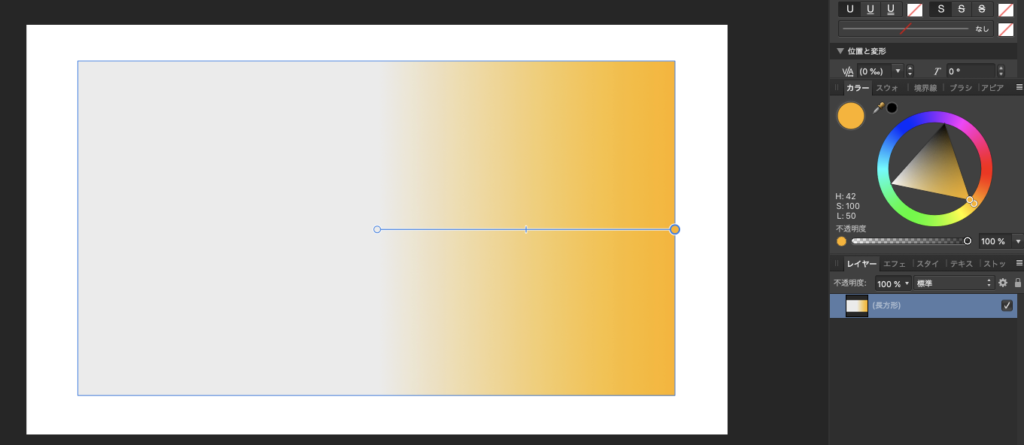
”Select the color you want to use from the studio color palette on the right.”
この手順で簡単にゴールドっぽく作れます。”You can easily make it look like gold with this procedure.”
しかし、ゴールドの光沢表現が乏しいですね。”However, the glossy expression of gold is not enough.”
色が変化する場所を増やす”Increase the number of places where the color changes”
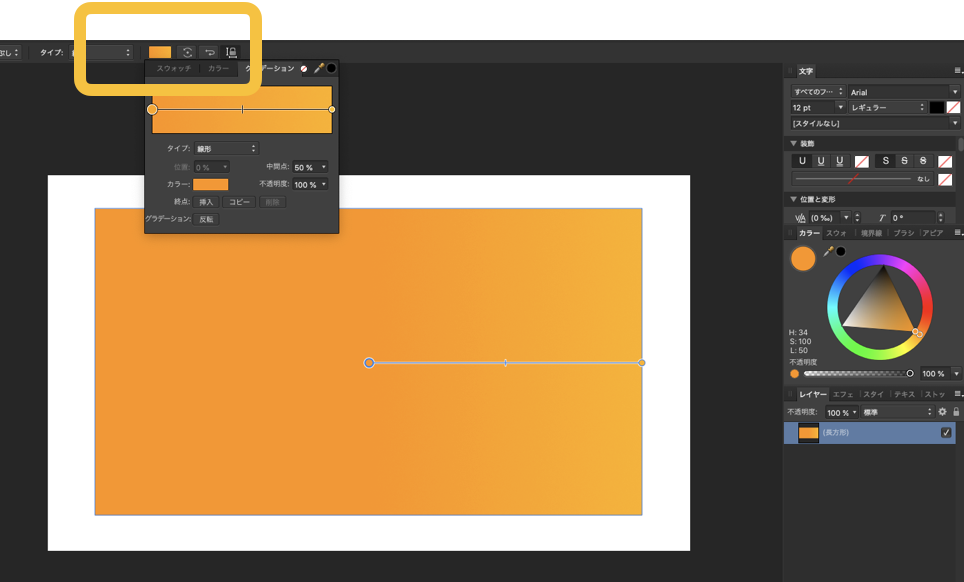
”Click the color box at the top to make detailed settings for the gradation.”

”If you double-click the area surrounded by the frame, a point to change the color will be created.”
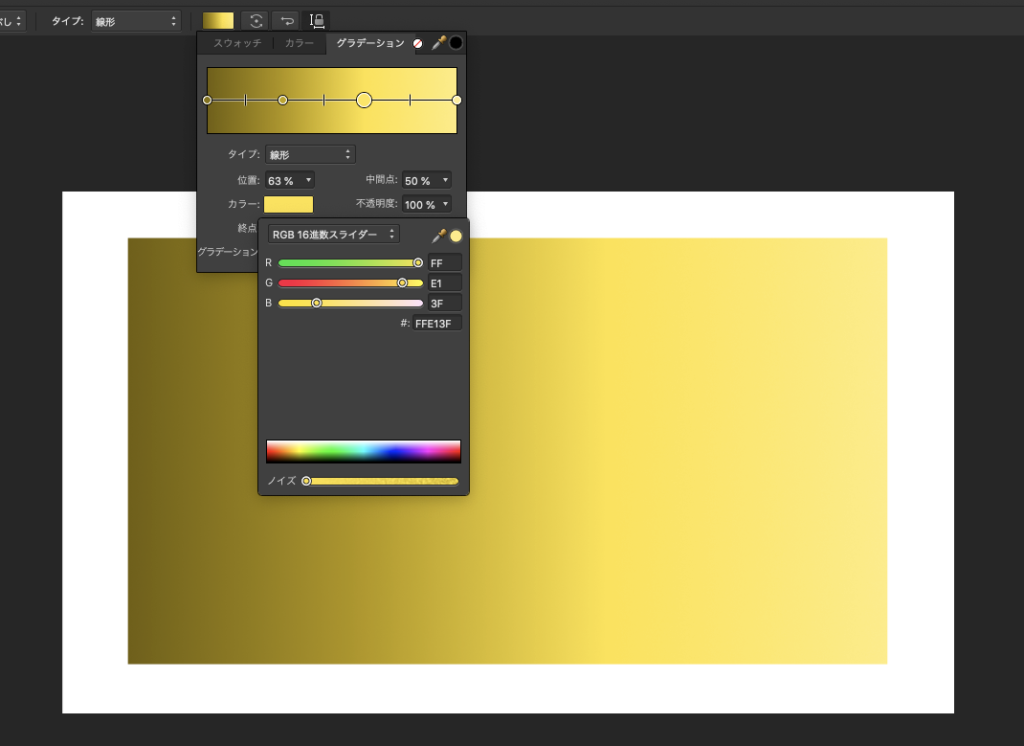
”[Color code] From the left, # 72600 → # b29600 → # ffe13f → # ffeb7f”
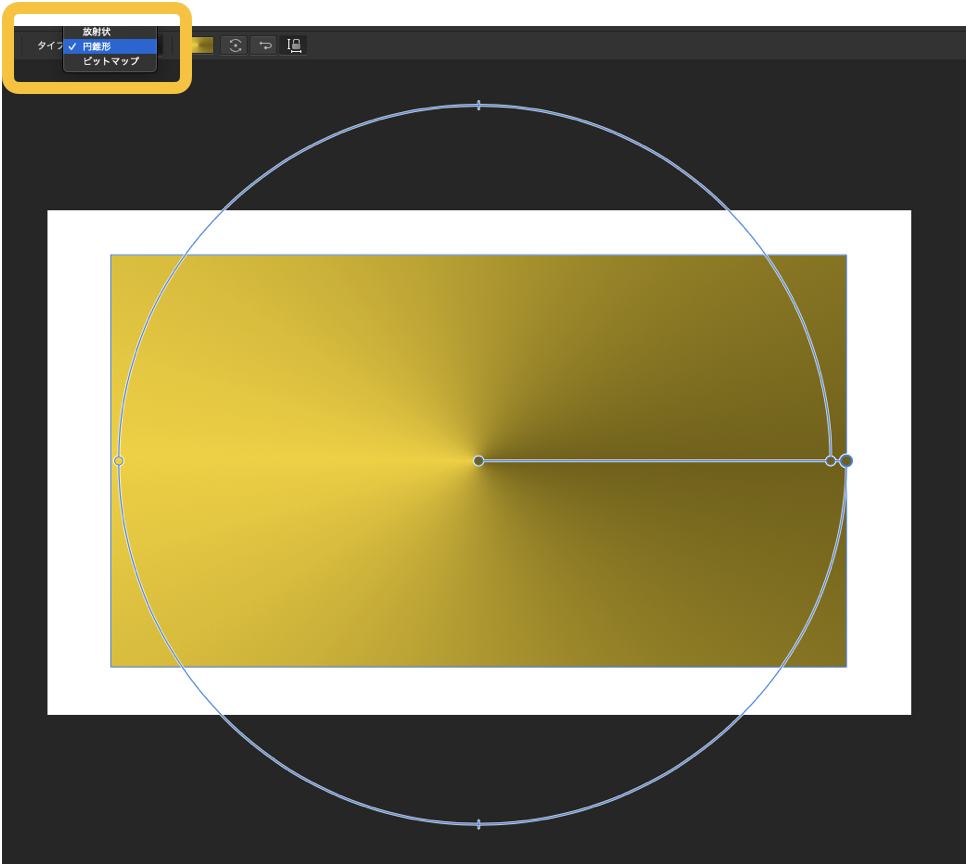
”Although it is cut off, you can change the shape of the gradient by selecting "Type" in the upper left (solid, linear, oval, radial, conical, bitmap).”
参照カラーコード ”Reference color code”
金色カラーコード はこちらを参照してください。”Click here for the gold color code.”
【カラーコード】「〇〇ゴールド」について”[Color code]About "〇〇 Gold””
【おすすめゴールドカラー12選】金色をグラデーションで表現する”[12 recommended gold colors]Expressing gold with gradation”
Affinity Designerについては下のリンクから!”Click the link below for Affinity Designer!”
